TABLE OF CONTENTS
Participant Matching Overview
Oftentimes races will see participants register under different accounts or with different spellings of their name or will have registration data flowing into the results from different sources. All of these are reasons that multiple Series Participants might be created for the same person and need to be merged. For example, someone who registered as Jenny Smith for one race and Jennifer Smith for another would need to be combined so that all of the Series points and events are attributed to the same Series Participant. Merging participants with different ages or gender does not update the gender and/or age group scoring. The participant information in the original results should be corrected and results re-uploaded.
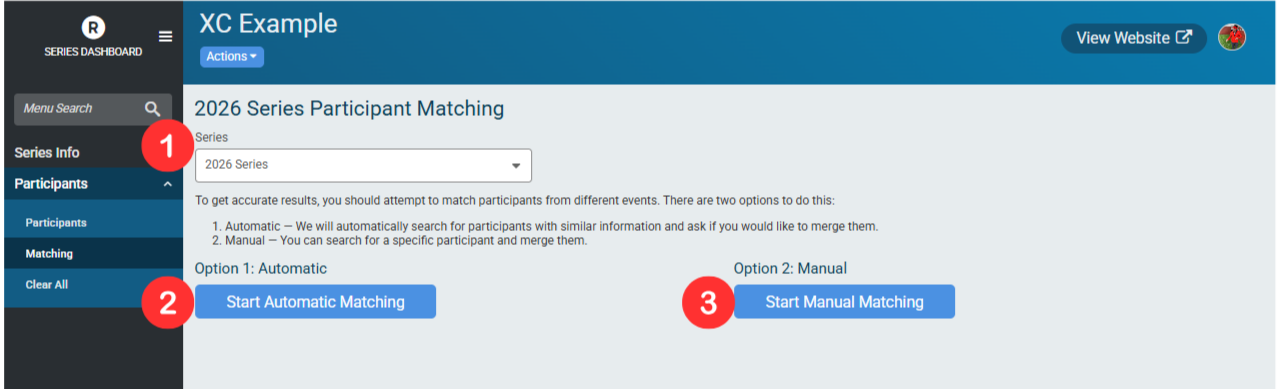
Series - Allows users to navigate between Series years
Option 1: Automatic Matching - This begins the Automatic Matching and opens the Participant Merge window
Option 2: Manual - This opens the Manual Matching window
Option 1: Automatic Matching
Automatic Matching is based on an exact first name, last name, and gender match (or have one of the two participants missing one of these fields). It also needs at least one of the following fields to match: Date of Birth, City, or Age plus/minus 1 year. When “Start Automatic Matching” is clicked, the Participant Merge opens.
Participant 1 is the Primary (existing) record, and Participant 2 is the newer record. It is useful to know which is which, as it can speed up the cleanup process if a specific event is known to have less participant information available.
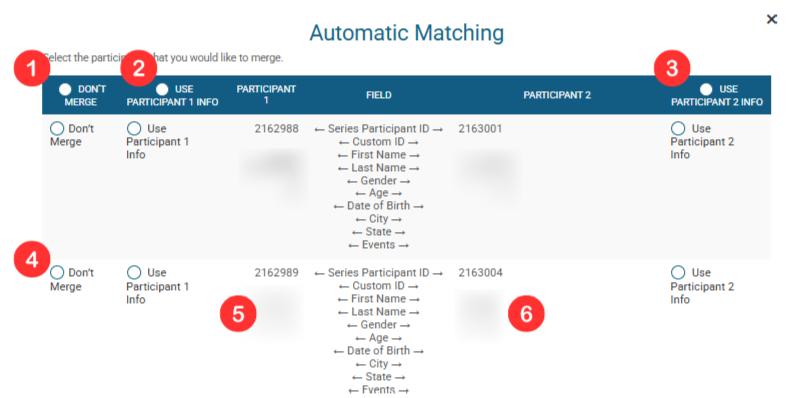
Don’t Merge (all) - Selected “Don’t Merge” for all participants
Use Participant 1 Info (all) - Selects “Use Participant 1 Info” for all participants
Use Participant 2 Info (all) - Selects “Use Participant 2 Info” for all participants
Don’t Merge/Use Participant 1 Info/Use Participant 2 Info (individual) - Selects the given option just for an individual participant
Participant 1 Info - Lists the information for each of the fields in the “Field” column for the existing/older version of the possible match
Participant 2 Info - Lists the information for each of the fields in the “Field” column for the newer version of the possible match
Once all participants have been assessed and an option selected, click Merge Selected Participants.
It is important to note that Participant Matching can only merge two versions of a participant. Running Automatic Matching after uploading multiple results to a Series will likely result in an error when attempting to merge participants. Automatic Matching should be run after every upload subsequent to the first results upload.
Option 2: Manual Matching
Manual Matching is most useful for solving a known match that needs to be run for a single participant. It requires the user to know the exact First and Last name of both versions of the participant to be merged.
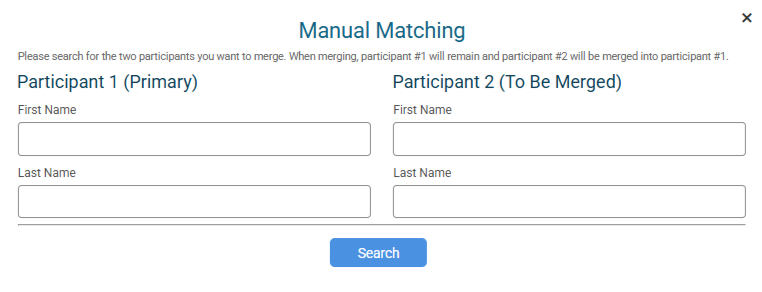
Participant 1 is the Primary participant information will be merged to and Participant 2 is the participant whose information will be merged from.
If the input finds two participants successfully, a matching window will be opened.
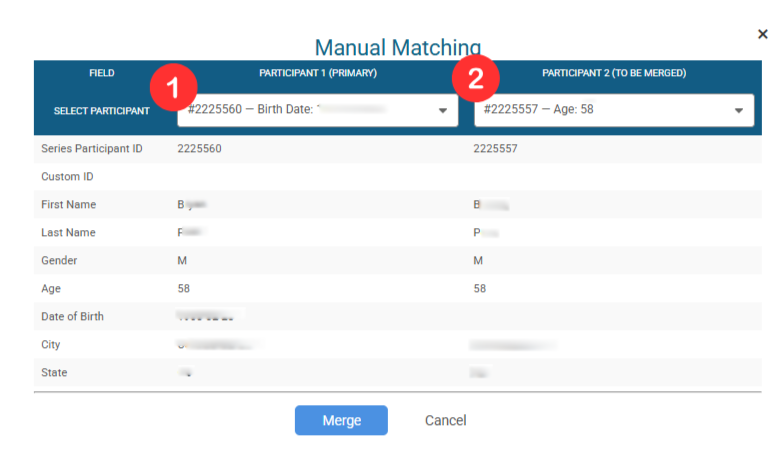
Participant 1 (Primary) - Select which version of the participant should be the Primary. The dropdown shows which data is different (in this case, a Date of Birth vs just an Age)
Participant 2 (to be Merged) - This dropdown is used to select which version of the participant will be merged to the Primary.
Both Participants will have their data displayed on the display table for comparison.