TABLE OF CONTENTS
Series Scoring: Score Events
To apply scored results either natively from RunSignup results or by uploading a CSV, go to Series Info -> Scoring -> Score Events
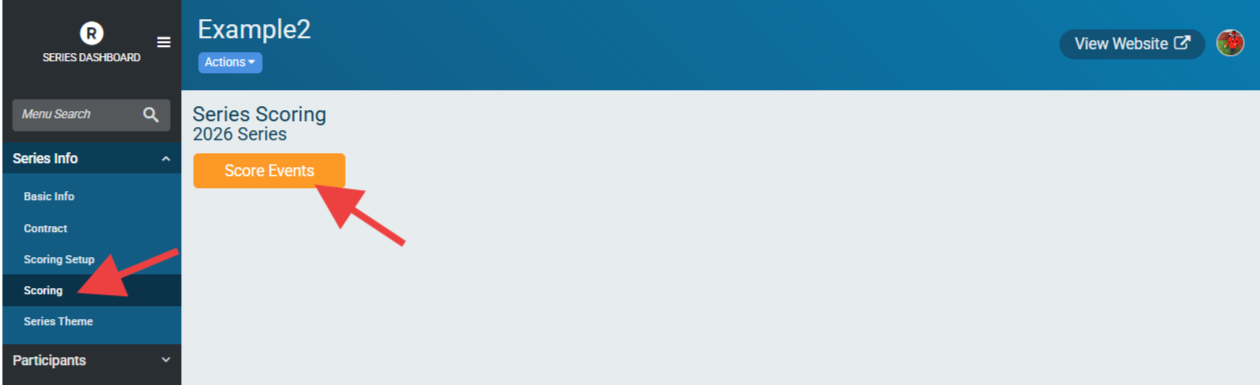
Then select the Event to upload results for:
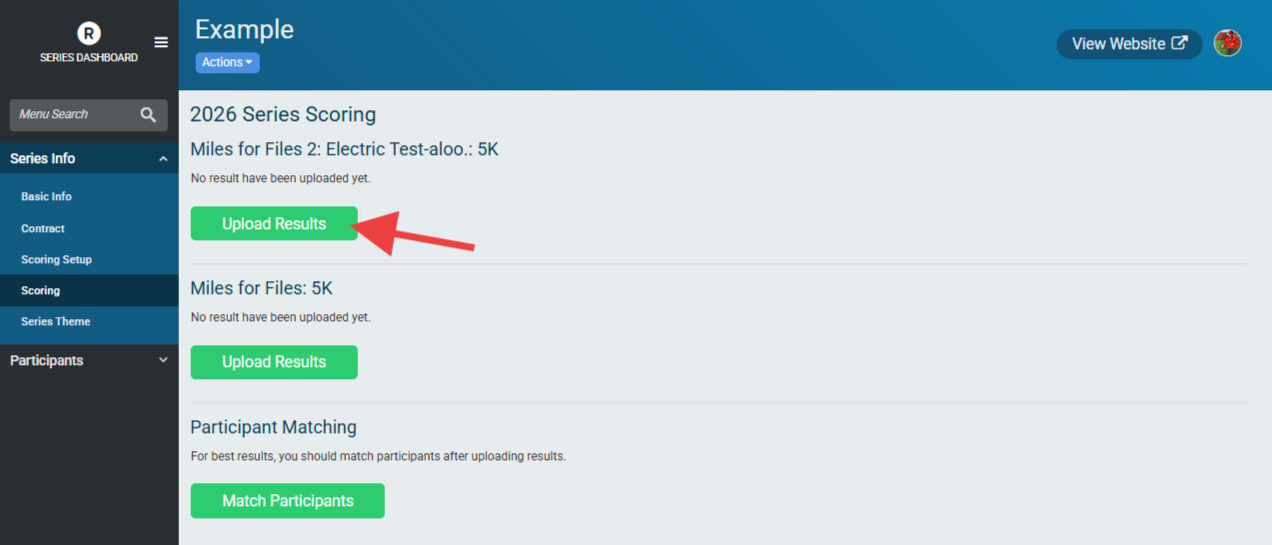
There are two options for uploading results.
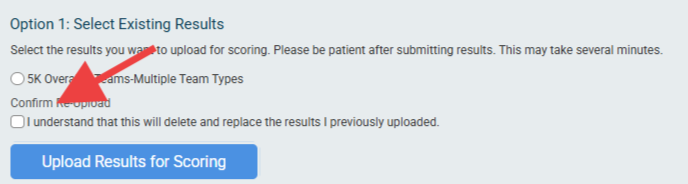
Option 1: Select Existing Results
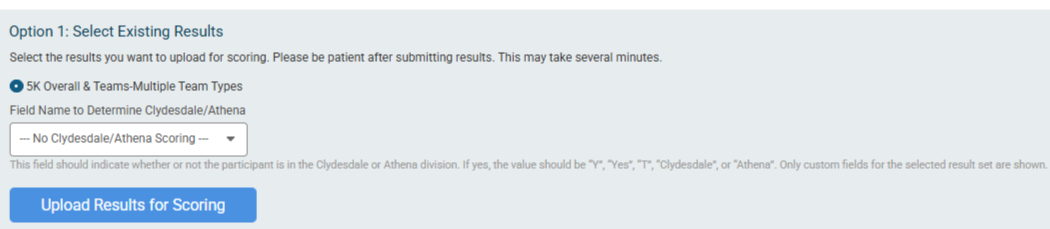
This option lists out any result sets associated with the event posted natively to RunSignup. It is possible to have multiple result sets on RunSignup for a given event, but only one result set can be used for uploading results to a given series. Series points will be assigned based on the Scoring Field [INSERT LINK] selected for the series, which will map to the field from the result set.
If Clydesdale/Athena (Custom Field) scoring is applicable, the custom field used to identify participants as in that category can be selected. The custom field should have a value of “Y”, “Yes”, “T”, “Clydesdale”, “Athena” (or whatever the value the field was changed to) to identify these participants. Divisions or other methods of identification will not work using this scoring option.
Once “Upload Results for Scoring” is clicked, the page will either inform you that results are successfully uploaded, results are being processed, or that there were issues with the upload.
Previous imports are also listed at the top of this screen with the import start timestamp, import completed timestamp, import status, import errors, and number of bad merges corrected.
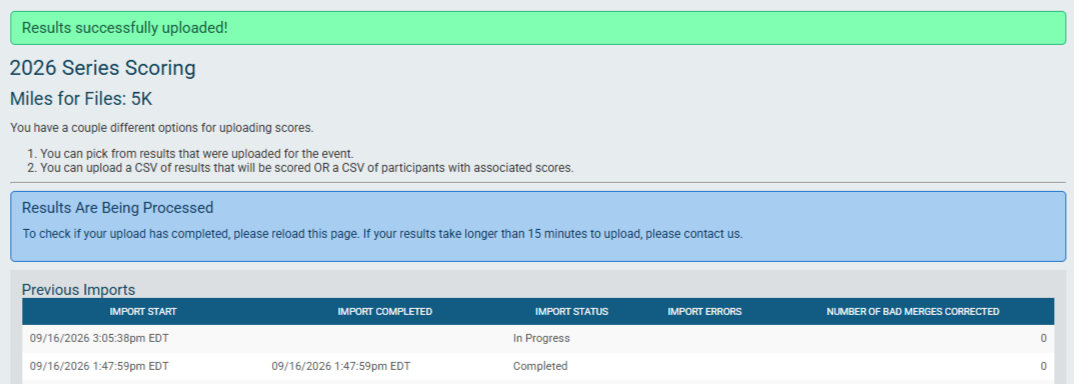
Only one result set can be processed at a time - if a result set is still processing, further uploads will not be allowed until this process is complete.
To re-upload results, follow the same steps as before, but with the addition of acknowledging that this process will delete and replace the results previously uploaded to the series. This does not delete the results from the event page on RunSignup.
Option 2: Upload Results CSV or Scores CSV
If results are not hosted on RunSignup, or if the points attribution is not compatible with the points attribution methods in the Scoring Setup, CSV uploads provide an easy method for uploading the scores or results to the Series. Events still need to exist on RunSignup in some capacity and an Event Sharing Token [link here] needs to be used to link events to the series even if results or scores are uploaded by CSV.
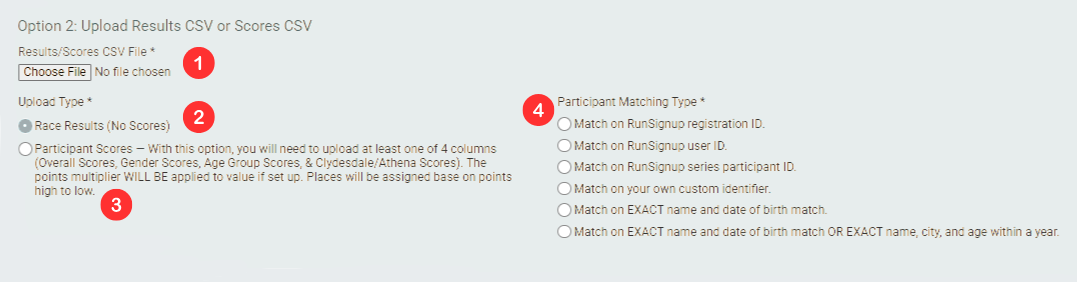
Results/Scores CSV File - Choose the file to upload. The file must be in CSV format and include fields that are required based on the Upload Type and Participant Matching Type
Race Results (No Scores) - Use this option to upload results with times/places (depending on what the Series or specific event are being scored on). This is helpful if results are not hosted on RunSignup. Required fields will be based on the Participant Matching Type as well as the Scoring Field that the event uses. Scores for Race Results uploads are calculated using the Master Scoring [INSERT LINK] or Special Scoring setup.
Participant Scores - Use this option to upload scores that are calculated prior to upload. This is helpful if a simple formula or the Master Scoring CSV methods are not usable for a specific use case. When uploading Participant Scores the following fields will be required: Overall Score/Points, Gender Score/Points, Age Score/Points, and Clydesdale/Athena (Custom Scoring) Score/Points in addition to the Participant Matching Type fields. The name of the columns do not have to match exactly and can be mapped (see below), but they do need to exist even if their scoring methods are not used for the Series.
Participant Matching Type - These fields drive the participant matching across the series. Some fields, like Registration ID, can be used to bring in information like Gender and Date of Birth/Age if the columns do not exist in the CSV that is uploaded.
RunSignup Registration ID - This is the best method if registration is on RunSignup. Participants who are in registration events other than the one being scored will cause errors.
RunSignup user ID - This method users the RunSignup user ID - this can be less reliable as participants who are registered under other accounts may not come in accurately.
RunSignup series participant ID - This method requires users to know the RunSignup series participant ID (found by exporting participants in the series on the Participants area of the Series dashboard).
Your own custom identifier - This requires users to have a custom identifier that is consistent across the series
EXACT name and date of birth match - This method is helpful if name and date of birth are available in the data but no Registration ID is available (if, for example, the registration is not on RunSignup or that data was not shared with the timer).
EXACT name and date of birth match OR EXACT name, city, and age within a year - This is the best method to use if Registration ID is not a viable method for participant matching. If a date of birth is not available, city and age within a year are used. This means that Hamilton Porter, age 37 would be matched with a Hamilton Porter, age 38 if other fields match.
Both methods (Race Results and Participant Scores) will have the Points Multiplier for the event applied AFTER their upload. Do not factor in multipliers ahead of time if they are being applied by the Series Scoring platform.
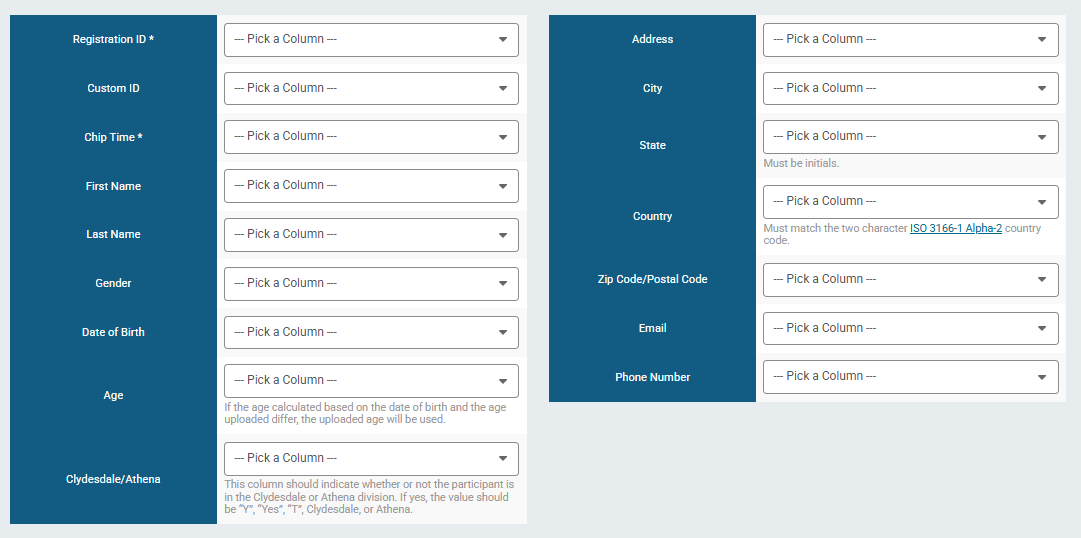
Once a Participant Matching Type is selected, field mapping will be available. Choosing a file will allow users to map the column name from the CSV to the equivalent Series Scoring name. Note that not all columns are required, and different Participant Matching Types will yield different column requirements. The example below is from a Race Result upload with “Match on RunSignup registration ID” selected.
When uploading results or scores via CSV:
If the age calculated based on the date of birth and the age column differ, the uploaded age will be used
Uploading results/scores with Date of Birth with Age Calculation Date Override [link here] selected will result in the age being calculated off of the set date. Do not upload an age when using this method if Date of Birth is available
State column must be the state’s initials (MN for Minnesota, for example)
Country must match the two character country code if uploaded
Any participant with a non-zero/blank gender score must have a gender and age in the result set.
Any participant with a non-zero/blank age score must have a gender and age in the result set.
Any participant with a non-zero/blank Clydesdale/Athena (Custom Field) score must have a gender set.
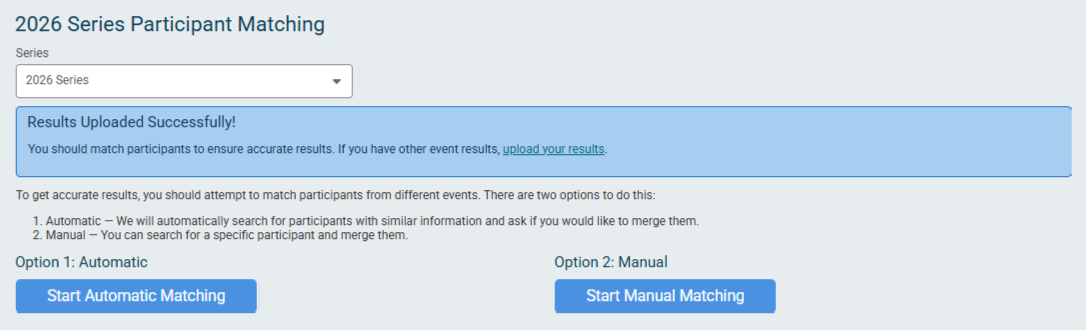
Once an event has results uploaded, a pop up state that results are being processed. Proceeding will bring you to the Participant Matching page. See [insert link] for more information.
Returning to the Scoring page will present the following options:
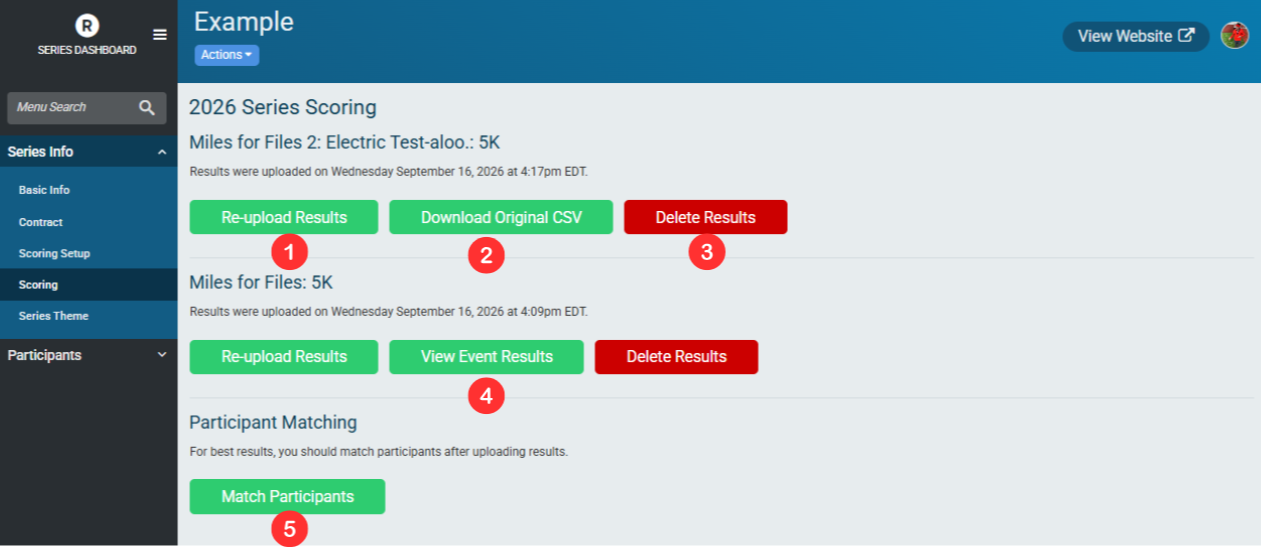
Re-upload Results - Allows users to re-upload results if necessary. Re-uploading results requires acknowledgement that the previous results will be deleted.
Download Original CSV - If Results or Scores were uploaded via CSV the original CSV used to generate the results can be downloaded using this button.
Delete Results - Deletes the results from the Series. This does not delete the series participants and does not delete results from the RunSignup page.
View Event Results - Links out to the RunSignup results used to score the event. Only available if results were imported using Option 1.
Match Participants - Match participants from different uploaded result sets who may need to be merged. See [insert link] for more information.