Event Setup
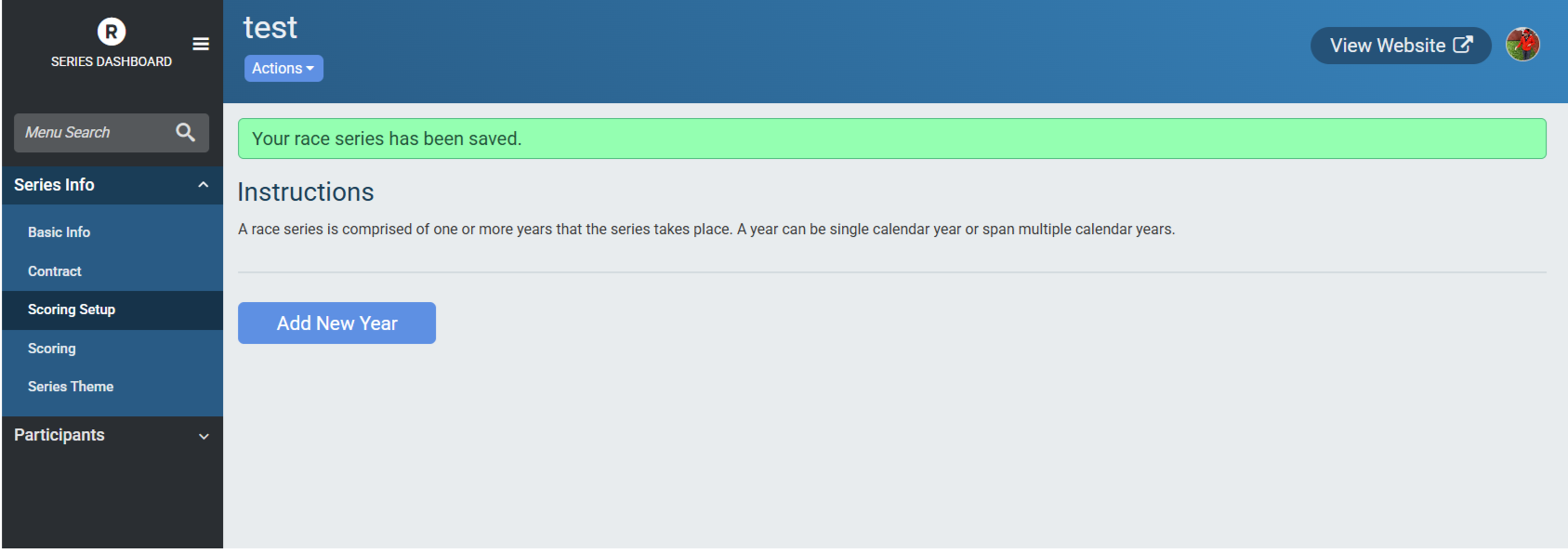
Event Setup is the first step in building out the scoring of a Race Series. When a series is first created, it brings the user to the “Add New Year” screen. If the series already exists, new years for the Series can be added by navigating to Series Info -> Event Setup:
The Event Setup step is important for defining the basic structure of how the Series is scored, from calculating a participant’s age for age group placement to how many events will be used for scoring.
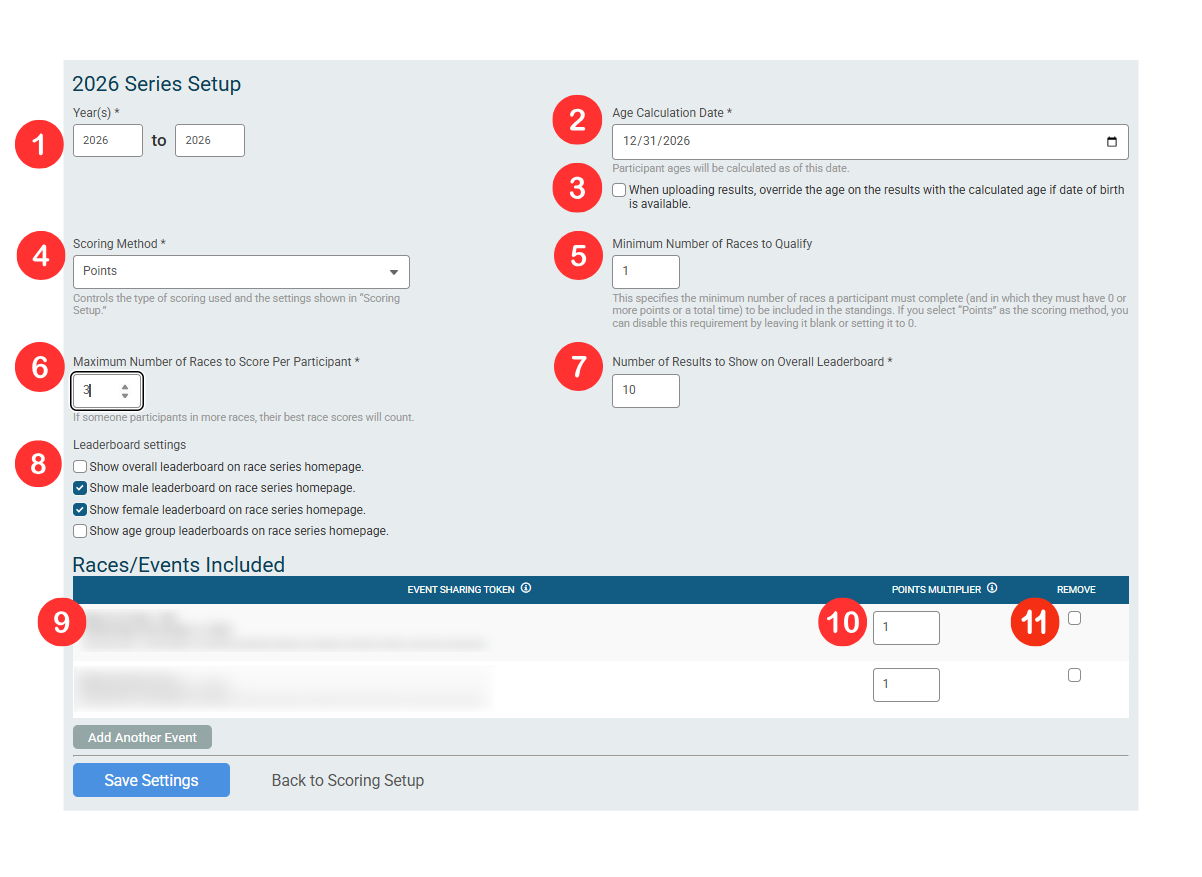
Year(s) - This determines the years that the Series will span. If the Series only covers a single calendar year, set both the start and end years to match.
Age Calculation Date - Participant ages will be calculated as of this date when using the native RunSignup Results imports for the Series, date of birth is available, and Age Override is enabled or if the imported result ahs no age. This age is used to calculate a participant’s Age Group in the Series. It is fairly common to set this date as either January 1st (start of the year), December 31st (end of the year), or the date of the first or last race in the series. It is important to let participants know what date is used to calculate Series Age.
Age Override - If results are uploaded via CSV, having this box checked will override the age in the uploaded results (if that column is included) with the age calculated from the Age Calculation Date if date of birth is available.
Scoring Method - This determines what is used to score the series. The options are either Points or Total Time. Changing a scoring method will reset results with a warning.
Minimum Number of Races to Qualify - (This does not require you to re-upload results for it to take effect) - This is the minimum number of events that a series participant received points in a category for required to qualify for placement. For example, if the Minimum Number of Races to Qualify is set to 3 and a participant has Age Group Points in 3 races but only has Gender Points in 2 races, they would qualify for Age Group placement but not Gender placement. It is not required to set a Minimum Number of Races to Qualify and can be left blank as long as the Scoring Method is not set to Total Time. If you set the Minimum Number of Races to Qualify higher than the number of Events in the Series, you will receive this warning:

Maximum Number of Races to Score Per Participant - (This does not require you to re-upload results for it to take effect) - This is the maximum number of events that will be used to put points towards placement for a series participant. If a participant has participated in 5 events but the Maximum Number of Races to Score is set to 3, only their three best results will be used for calculation. Series Participants do still have the points for the remaining races attributed to them, but those points are not used to calculate their Series Scores. It is required to set a Maximum Number of Races to Score
Number of Results to Show on Overall Leaderboard - (This does not require you to re-upload results for it to take effect) - This setting controls the maximum number of participants shown in each enabled leaderboard on the Series homepage. Changing this setting does not affect the scoring of the series, merely the display on the front page.
Leaderboard Settings - (This does not require you to re-upload results for it to take effect) - This setting determines which categories will be displayed on the Series Info page. The number of places shown in a category is determined by the previous setting.
Races/Events Included - This is a list of what is included in the series. Note that the date comes from the event itself, not from the Race. The format for display is [Race] - [Event]
[Date]
[Sharing Token]
Points Multiplier - The points multiplier used on this specific event. Points multipliers are applied AFTER any automatic scoring and apply to points imported from a spreadsheet. This can be useful if you want to weight certain events more heavily than others, for example maybe a Race A gets a points multiplier of 2 while all events for Race B get a multiplier of 1 (which means no point attributions are affected by the multiplier).
Remove an Event - Checking this box for an event and then saving the settings will remove it from the series. After at least one event is added to the series, you cannot remove all of the events without at least adding an additional event. You also cannot save at all if you do not have any events associated with the series. Note that any event that is removed erroneously would need to be re-added via the Event Sharing Token and re-scored (if it has already occurred).