TABLE OF CONTENTS
Series Scoring: Scoring Setup
To set up, view, or update the Scoring Setup for a Race Series, go to Series Info -> Scoring Setup -> Scoring Setup
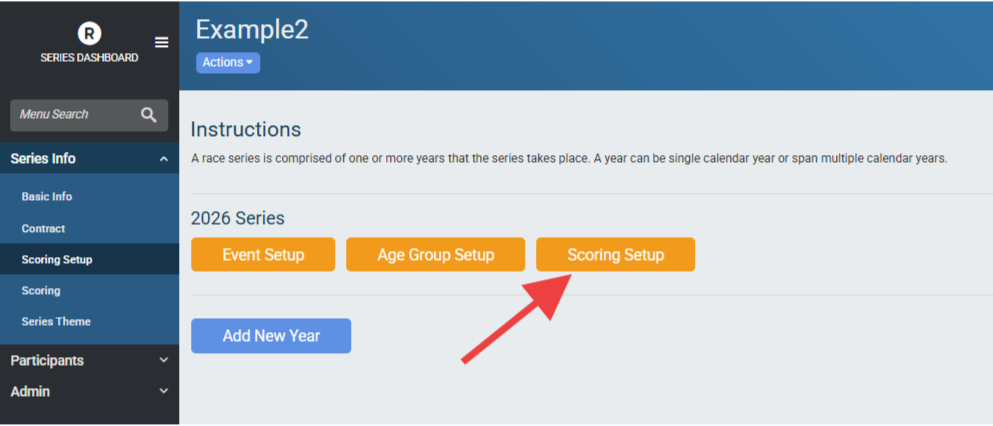
Without anything set up on this tab, nothing will be scored for a Series.
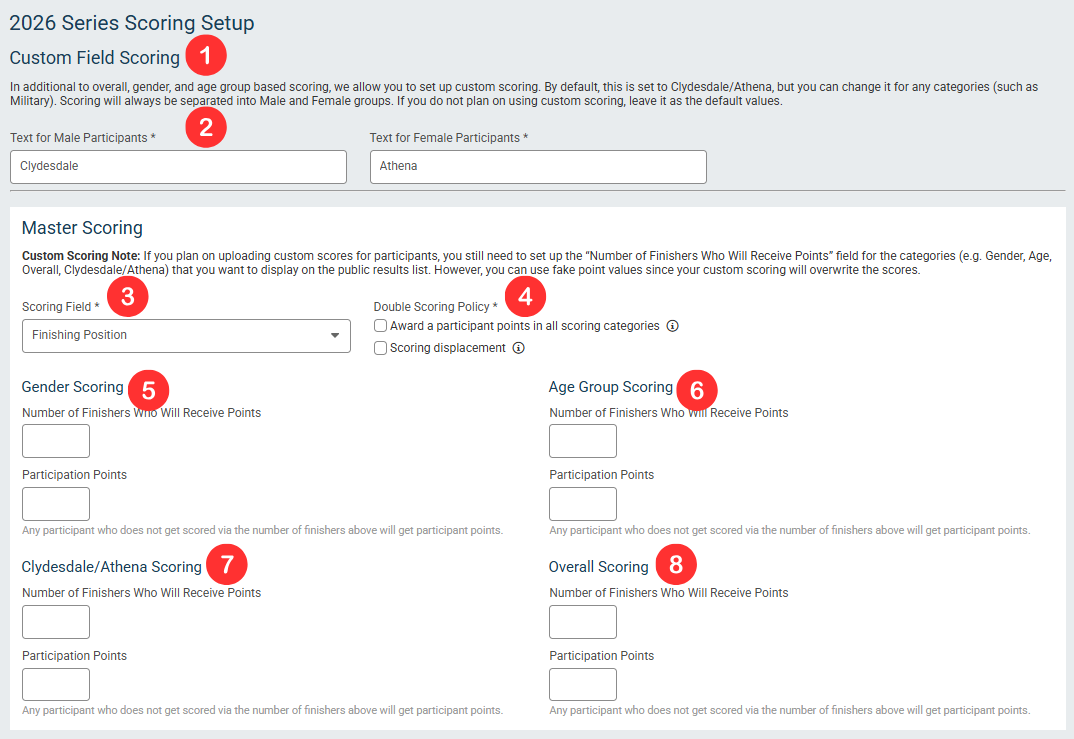
Custom Field Scoring - Custom Field Scoring is the fourth type of scoring, in addition to overall, gender, and age group based scoring. It is set to Clydesdale/Athena by default but can be changed to something else. Like age groups, Custom Field Scoring will always be separated into Male and Female age groups. If you do not plan to use custom scoring, leave it as the default values so that there is no confusion.
Text for Male/Female Participants - These are the names for the Custom Field Scoring categories that will be used for leaderboards. Any reference to Custom Field Scoring will use these names. If the names are changed from the default Clydesdale/Athena, keep in mind that all references in this guide will use the default name.
Scoring Field - The field that will be used to calculate points in each category. There are three options, and while you must choose only one for the Master Scoring individual events can be scored using a different method using the Special Scoring option.
Finishing Position - Places are assigned based on a participant’s finishing position (overall place).
Clock/Gun Time - Places are assigned based on the Clock or Gun Time for the race.
Chip Time - Places are assigned based on the Chip Time (sometimes referred to as Net Time) for the race.
Note: if the Scoring Method is set to Total Time, the scoring field will only show Gun Time and Chip Time
Double Scoring Policy - Double Scoring Policy determines how to handle participants who would place in two categories, for example how to handle someone who would win overall in addition to their age group.
Award a participant points in all scoring categories - If this is checked, a participant who would win 1st place overall and 1st place in an age group would be awarded points in both. If this is turned off, the option for Scoring displacement is presented.
Scoring displacement - Scoring displacement only shows if the Award a participant points in all scoring categories is unchecked. If Scoring displacement is checked, participants will only receive the highest score in a single category based on the Scoring Field selected. For example, if Ron finishes 1st overall and 1st in his age group and scoring displacement is on, nobody will receive 1st place points in that age group.
Gender Scoring - Scoring based on gender. Currently only Male and Female categories are supported by Series Scoring.
Age Group Scoring - Scoring based on Age Groups. Age Groups are determined by [link to Age Group setup] and are based on the Series age groups, not the event age groups.
Clydesdale/Athena Scoring (also known as Custom Field scoring) - Scoring based on the Custom Fields. Naming for this category will be based on the naming set at the top of this page.
Overall Scoring - Scoring based on overall place.
Each of the four categories - Gender, Age Group, Overall, and Clydesdale/Athena (Custom Field) - can have different point attributions. Below is a breakdown of how the points for a category can be calculated.
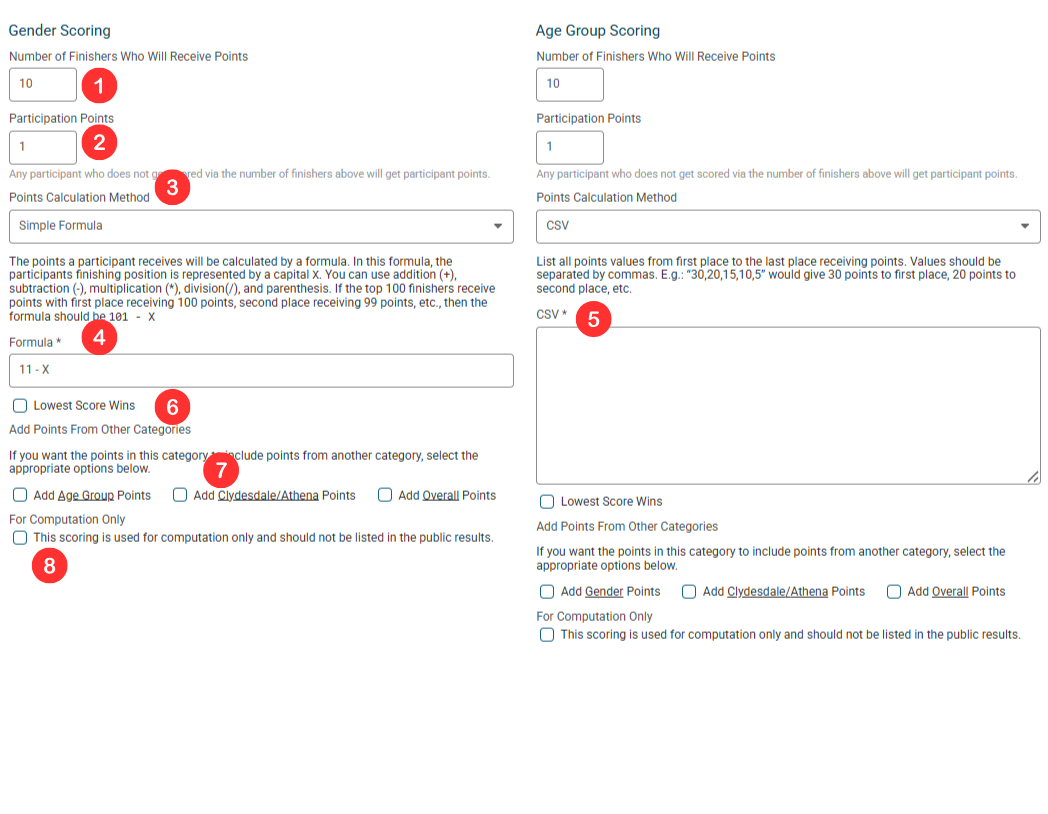
Number of Finishers Who Will Receive Points - This number determines how many participants will receive points based on the Points Calculation Method.
Participation Points - Anyone who places outside of the Number of Finishers Who Will Receive Points for this category will receive this many participation points. If a Series has a Minimum Number of Races to Qualify participation points are helpful to make sure that all participants receive a value that counts towards that total.
Points Calculation Method - How points are attributed to the Number of Finishers Who Will Receive Points. There are two methods for this: Formula, and CSV (discussed below):
Formula - The points a participant receives in this category (as long as they fall within the Number of Finishers Who Will Receive Points) will be calculated by a formula that uses the participant’s finishing position as a variable represented by a capital X. Addition(+), subtraction(-), multiplication(*), and division(/) operators can be used, as well as parenthesis. A simple example is used as the default, 11 minus(-) X. This means that for someone in 1st place, the formula would calculate 11-1 and assign this participant 10 points.
CSV - The points a participant receives in this category (as long as they fall within the Number of Finishers Who Will Receive Points) will be assigned to them based on a list of values separated by commas. 1st place received the first value, 2nd place the second, and so on. If the CSV was listed as 20,15,12, etc. then 1st place would receive 20 points, 2nd place would receive 15 and so forth.
Lowest Score Wins - If this is selected, a lower score will be considered better, similar to Cross Country scoring.
Add Points From Other Categories - Select any number of other Series Scoring categories that have points calculated to add them to the total points displayed for the chosen category. Each category’s leaderboard and standings will display only the points a participant received in that category unless one or more option here is selected. For example, not adding points from other categories for someone with 3 overall points and 10 age group points will show with a total of 3 points in the Overall Leaderboard and 10 points in the Age Group Leaderboard, resulting in different placement than expected if the intention was for them to have 13 points (3 Overall points and 10 Age Group points). If the desired result is to always show their total of points across categories, “Add Age Group Points” would need to be selected under the Overall scoring and “Add Overall Points” would need to be selected under the Age Group scoring.
For Computation Only - If this is selected, the scoring category will be used for calculating points, but will not show those points on the Standings display. This is helpful if all categories are to be added together to prevent the display from being confusing. Note that a row for that category will still exist with the participant’s placement, but will not have a point total next to it.
Note: Points Multipliers are applied AFTER the scoring of the event. If you have a multiplier of 2 for an event and first place gets 10 points based on your setup, that participant will receive 20 points.
Special Scoring
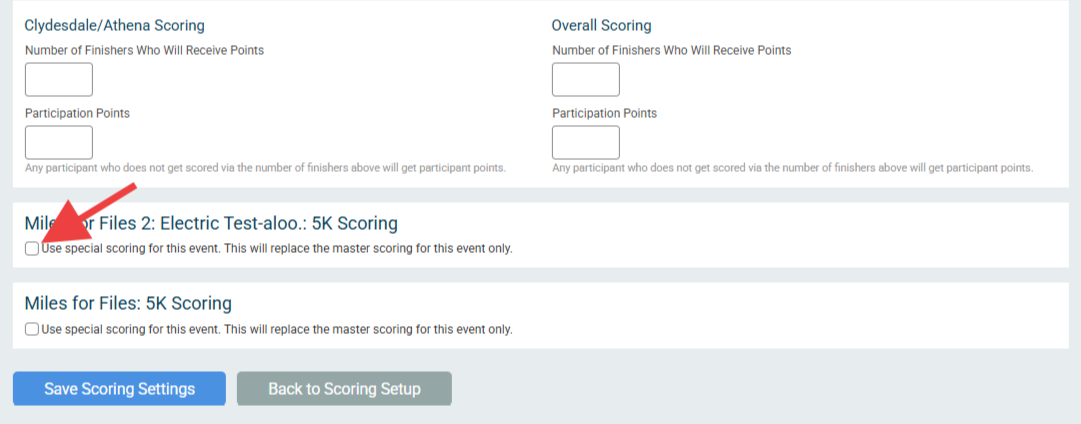
Individual Events within a series can have their own scoring rules, which are set up by selecting the “Use special scoring for this event” option. This is only necessary if the scoring should be handled differently for a specific event.