TABLE OF CONTENTS
Refund Donations
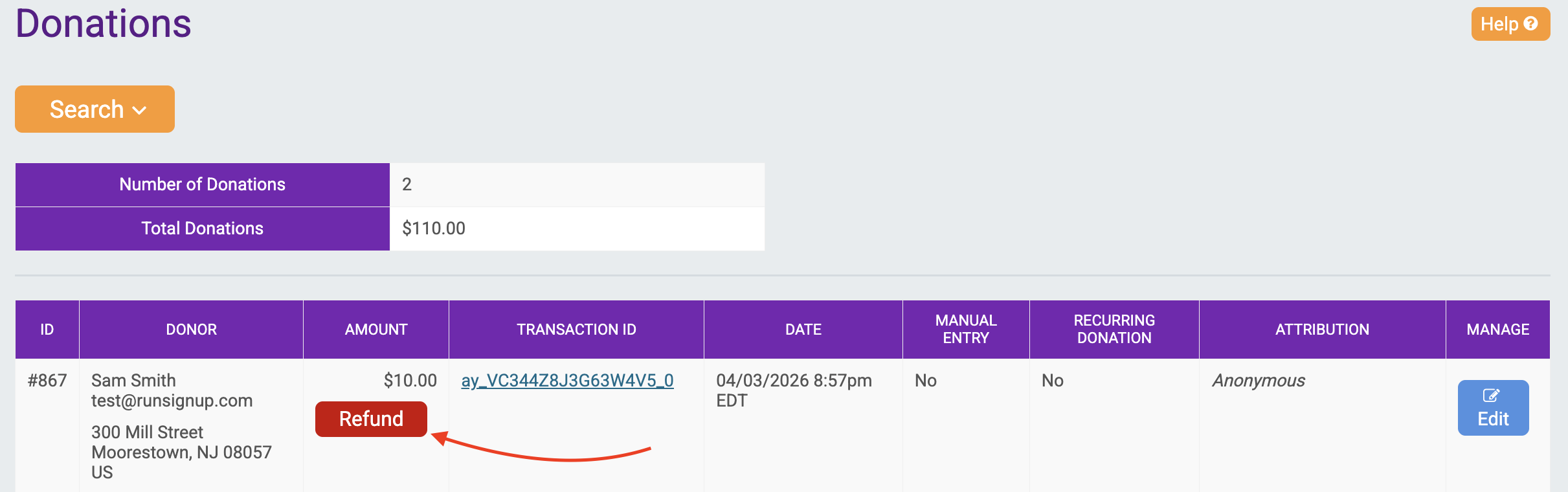
Once you have enough funds in the Refund Reserve to perform the refund, you can get started refunding a donation by navigating to the donation report under Donations >> Donation List in the Membership Organization dashboard, and clicking Refund.
Confirm the refund amount, add optional internal notes, and click Issue Refund.
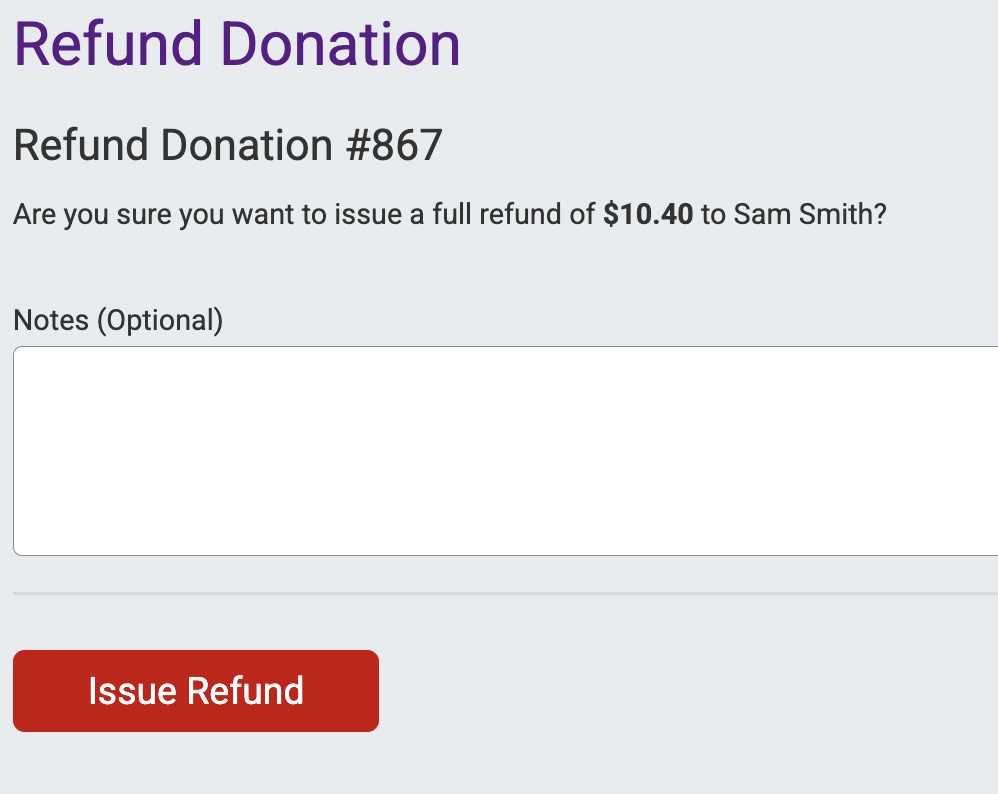
Note: We only allow for full refunds on donations, which includes any processing fees paid. Donations cannot be partially refunded.
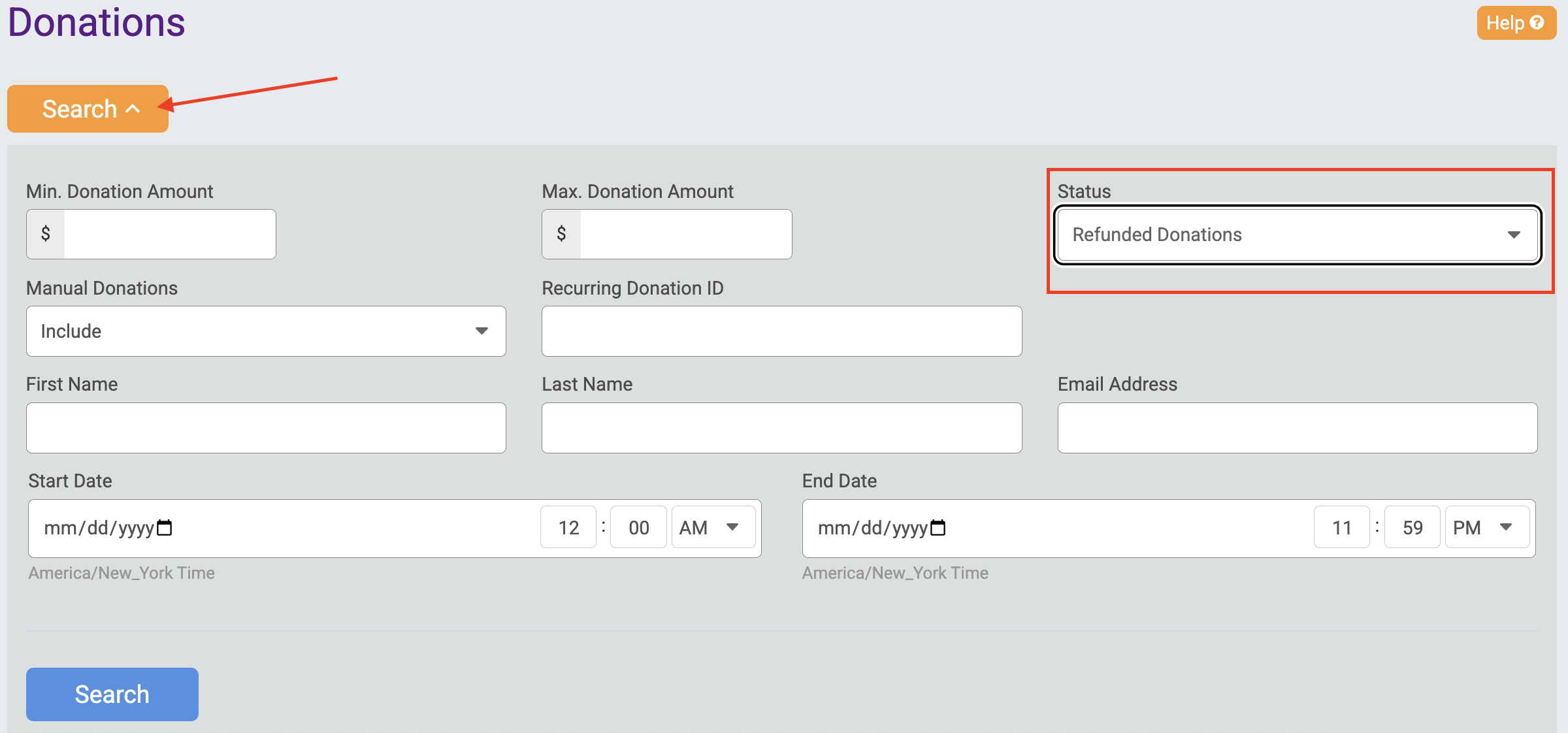
You can view refunded donations in the donation report under Donations >> Donation List by using the Search dropdown to filter by "Refunded Donations" in the Status field.
Refunds Report
View a report of the refunds processed for your Membership Organization under Financial >> Financial Summary >> Refunds.
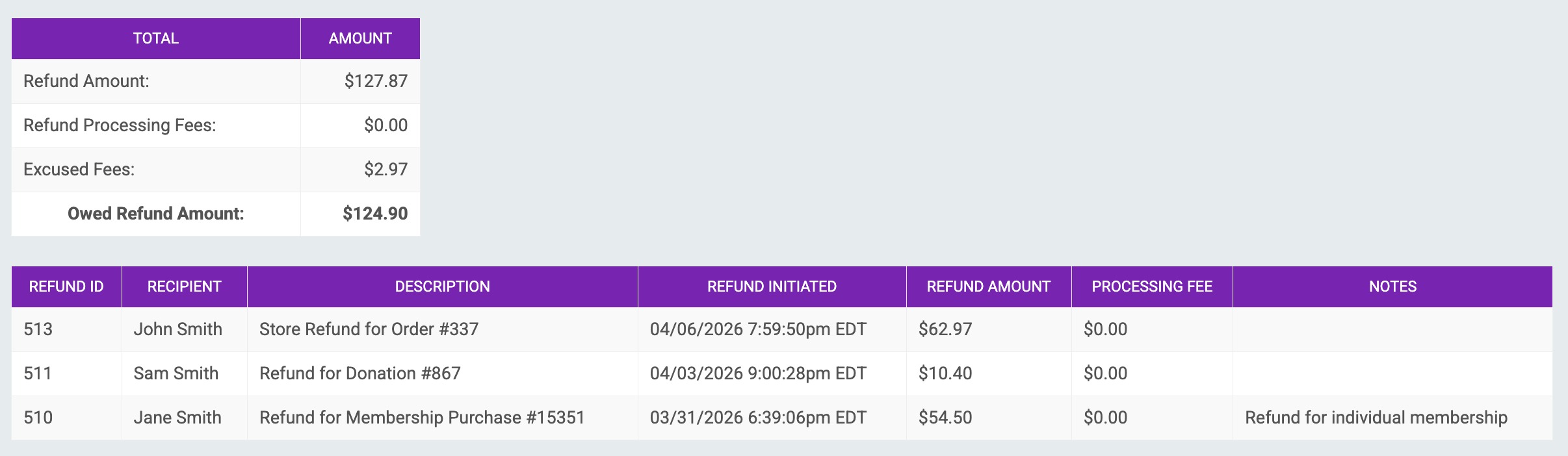
This report will provide a list of each refund processed, including the refund ID, recipient, description, date/time initiated, refund amount and any refund notes added when issuing the refund.
Bulk Refunds
There is currently no way to process bulk refunds for Membership Organizations. Each donation must be refunded separately. In addition, memberships, donations, and store items must be refunded separately.
Learn more about refunding memberships and store purchases for membership organizations below: