TABLE OF CONTENTS
Refunding Memberships
Once you have enough funds in the Refund Reserve to perform the refund, you can initiate the refund. Search for the membership using one of the membership reports (Reports >> Membership Purchases or Reports >> Individual Members) or use the member search in the top right of the dashboard. Once you have found the membership, click Manage.

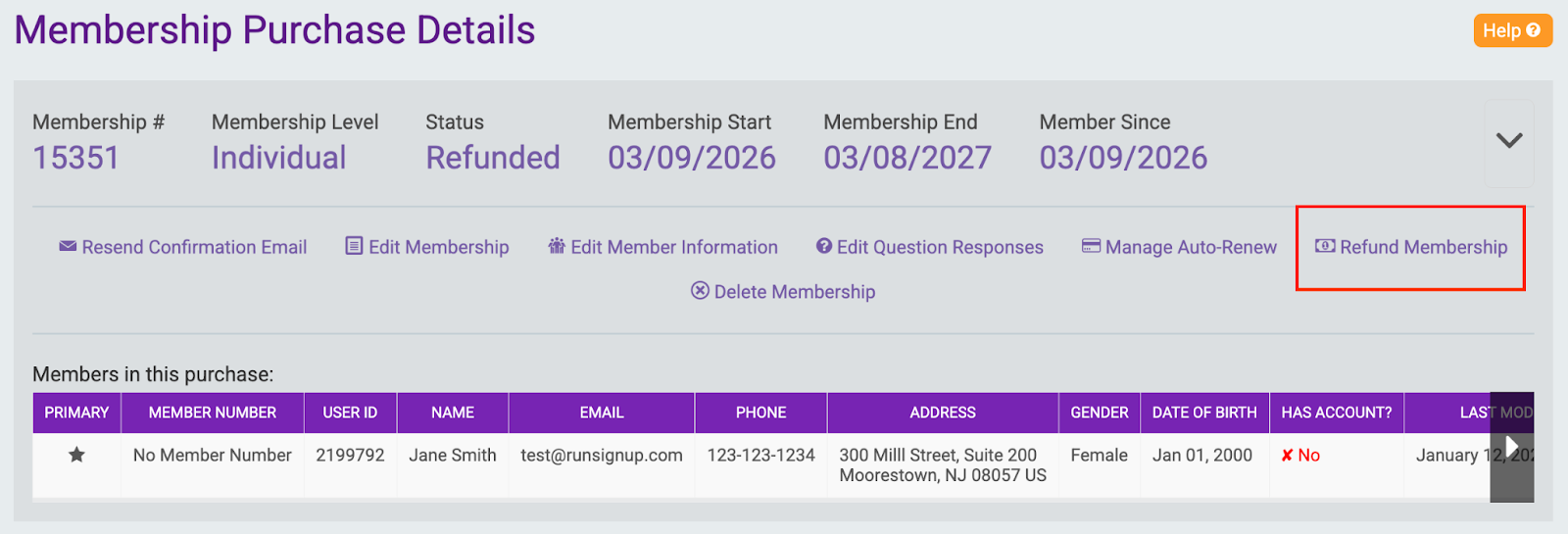
From the Membership Purchase Details, select Refund Membership.
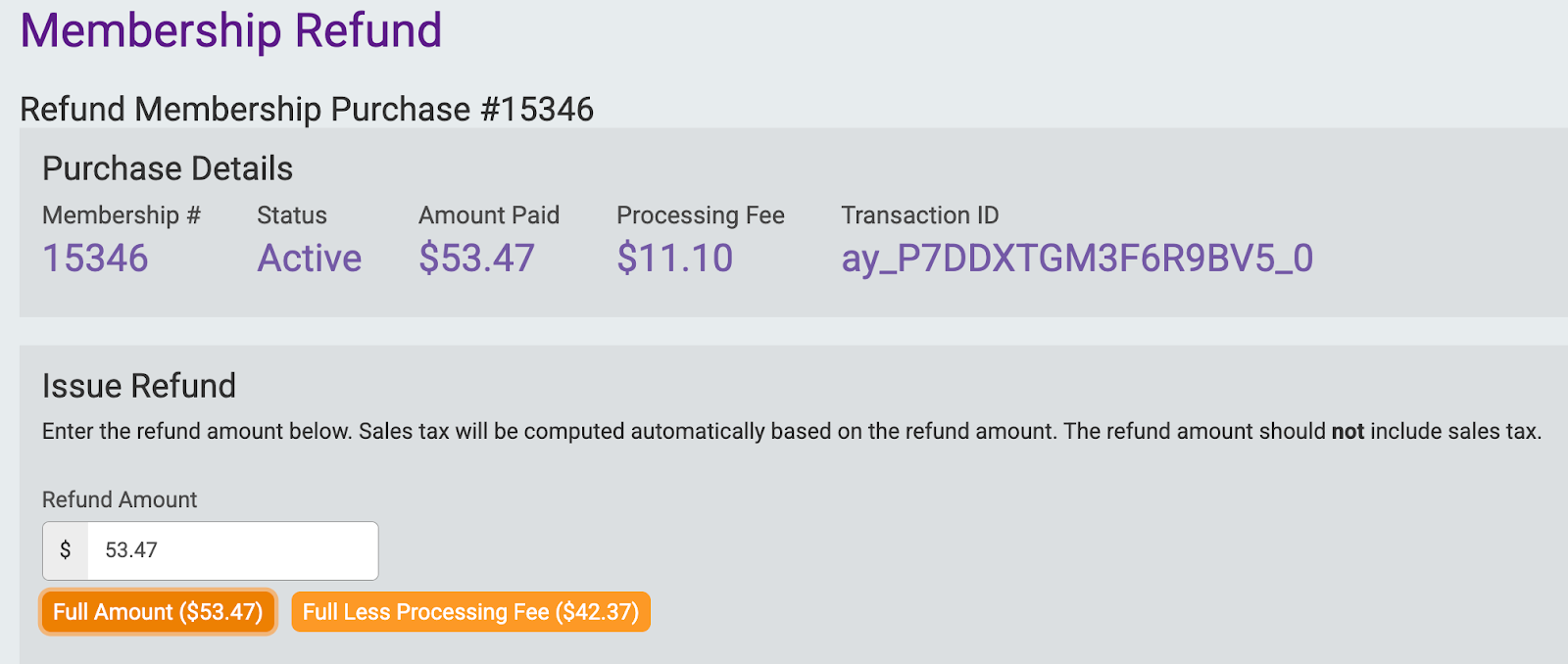
Enter the amount you would like to refund. You can enter a custom refund amount or use the quick select buttons to pre-fill the refund amount:
- Full Amount: The full amount (including any processing fee) that the purchaser paid for this membership.
- Full Less Processing Fee: The amount paid minus the processing fees.
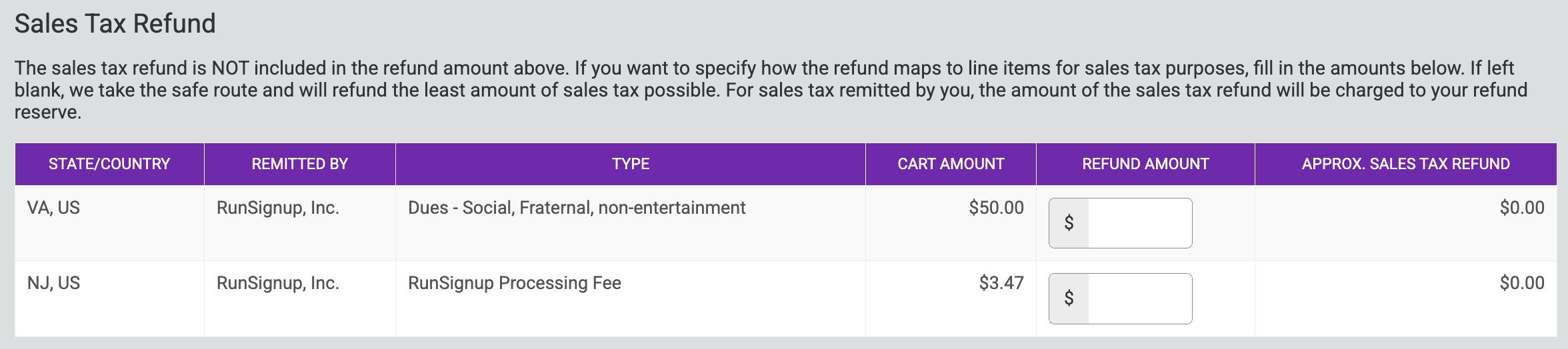
Sales Tax Refund
The sales tax refund is NOT included in the refund amount above. If you want to specify how the refund maps to line items for sales tax purposes, fill in the amounts below. If left blank, we take the safe route and will refund the least amount of sales tax possible. For sales tax remitted by you, the amount of the sales tax refund will be charged to your refund reserve.
Click Issue Refund.
Membership Status/Notes
Before issuing the refund, you must select if you would like to mark the membership as "refunded" so that it is no longer active or if you would like to leave the membership as active.
You can also enter refund notes. These notes will be kept internally.
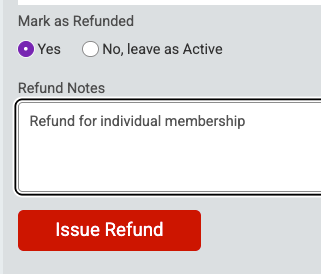
If the membership is marked as refunded, it will no longer be active. You can view refunded members from your Membership Purchasers report (Reports >> Membership Purchases) by filtering the Membership Status under the More Search Fields to “Refunded”.
Refunds Report
View a report of the refunds processed for your Membership Organization under Financial >> Financial Summary >> Refunds.
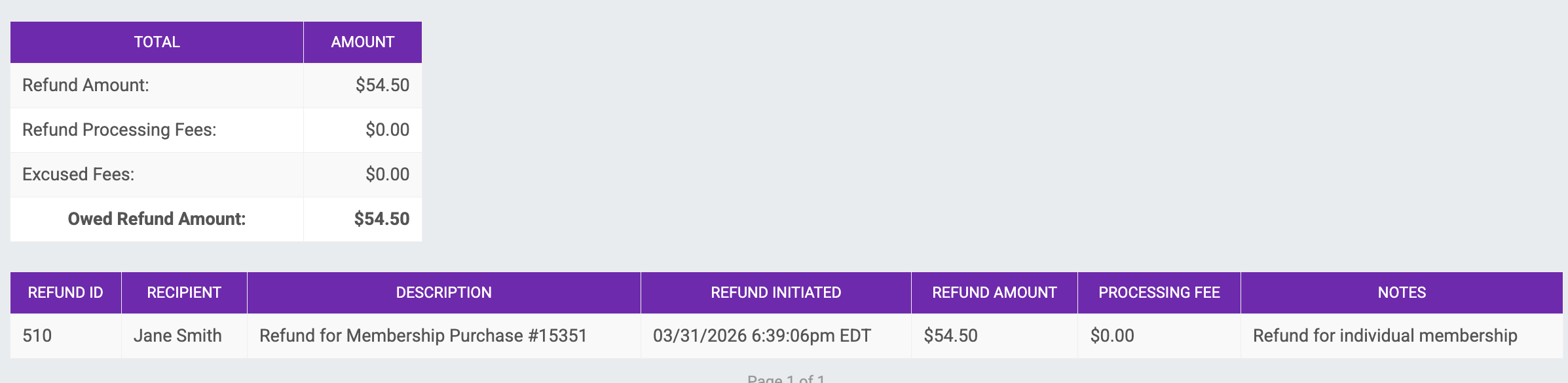
This report will provide a list of each refund processed, including the refund ID, recipient, description, date/time initiated, refund amount and any refund notes added when issuing the refund.
You can also view a summary of the total refunds processed. Note: The "Excused Fees" line in this summary will include any sales tax refunded by RunSignup. This amount was not removed from your refund reserve.
Bulk Refunds
There is currently no way to process bulk refunds for Membership Organizations. Each membership must be refunded separately, even if multiple memberships occurred in the same transaction. In addition, memberships, donations, and store items must be refunded separately.
Learn more about refunding donations and store purchases for membership organizations below: